

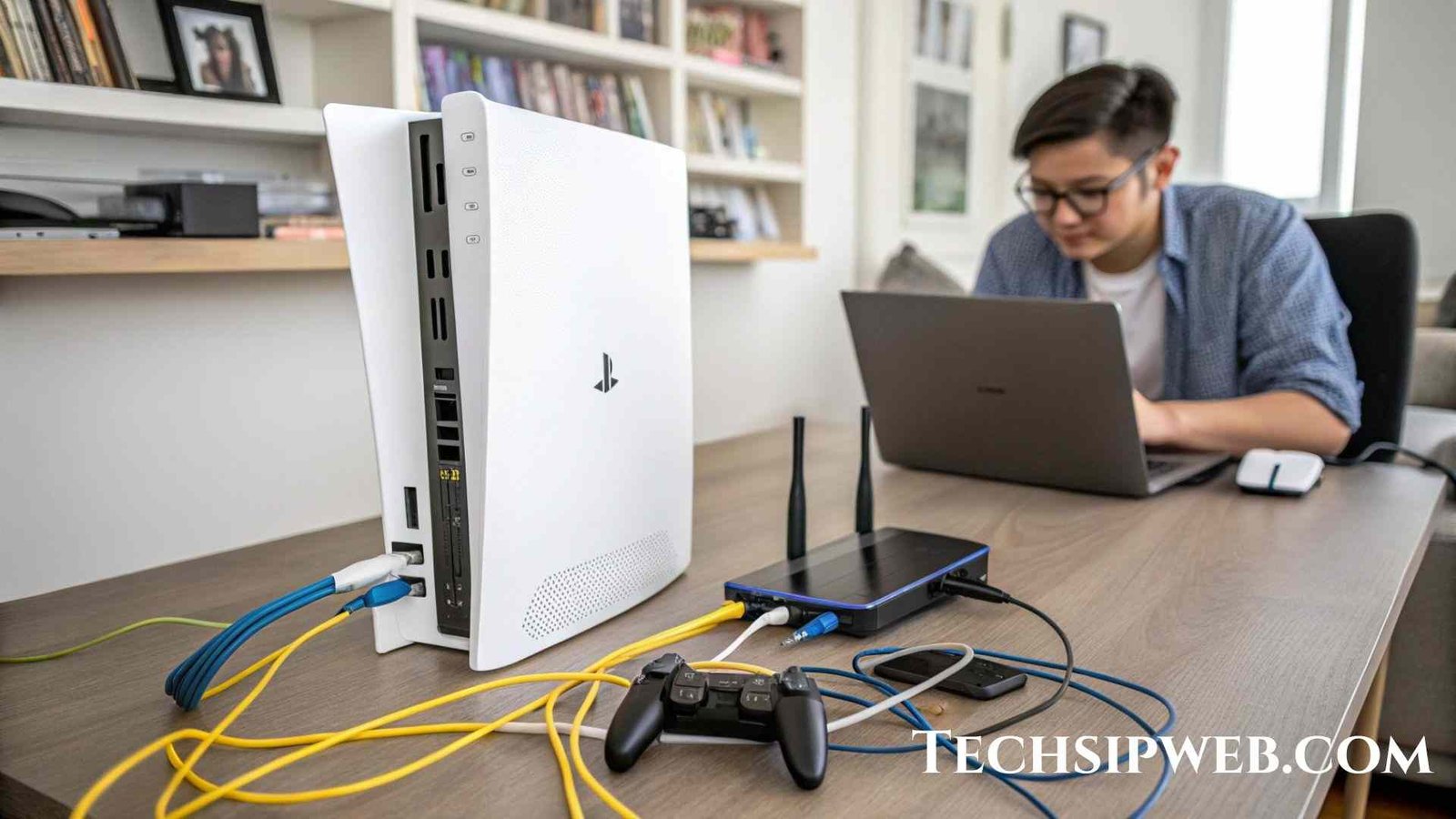
Restart your PS5 and router, use a wired connection or stronger Wi-Fi update settings like DNS and check PSN servers. This usually fixes network issues.
Keep following us, as we will soon cover How To Fix PS5 Network Connectivity Issues? to help you enjoy lag-free gaming.
Definition of PS5:
The PS5 (PlayStation 5) is a gaming console made by Sony. It lets you play video games, watch movies and even use apps like Netflix or YouTube. The PS5 is very powerful, has super-fast loading speed, high-quality graphics and supports online gaming.
Why Do PS5 Network Issues Happen?
Before jumping into fixes, it’s important to understand the common causes:
- Weak Wi-Fi signal due to distance or obstructions.
- Network congestion when too many devices share the same internet.
- Incorrect DNS or MTU settings.
- Outdated PS5 software.
- Router compatibility issues.
- PlayStation Network (PSN) outages.
- ISP problems like low bandwidth or unstable connections.
Knowing the cause makes it easier to apply the right solution.
Step-by-Step Fixes for PS5 Network Issues
Restart Your Console and Router
This quick step can fix temporary glitches. Power off your PS5, unplug your router for 30 seconds, then restart both devices.
Test Your Internet Connection
Go to:
Settings > Network > Connection Status > Test Internet Connection
This will show your speed, NAT type, and connectivity status. If the results are poor, move on to other fixes.
Switch to Wired Connection (Best Option)
A direct Ethernet connection is always faster and more stable than Wi-Fi. If possible, plug your PS5 into your router with a LAN cable.
Improve Wi-Fi Performance
If you can’t use Ethernet, optimize your Wi-Fi:
- Use the 5GHz band for faster speeds.
- Move your PS5 closer to the router.
- Keep the console away from microwaves, cordless phones, or thick walls.
- Limit other devices streaming or downloading while gaming.
Change DNS Settings for Faster Connection
Default DNS from your ISP may be slow. Switch to public DNS:
- Google DNS: 8.8.8.8 / 8.8.4.4
- Cloudflare DNS: 1.1.1.1 / 1.0.0.1
How to do it:
Settings > Network > Set Up Internet Connection > Advanced Settings > DNS Settings > Manual
Adjust MTU Settings
Lowering MTU can help with stability:
- Go to Advanced Settings under your network.
- Change MTU from 1500 to 1473.
Check PSN Server Status
Sometimes the issue is with Sony servers. Check here: PSN Status Page.
Update Your System Software
Outdated software can cause network bugs.
Settings > System > System Software > Update System Software
Enable Port Forwarding for Better NAT Type
If you face NAT issues, forward these ports in your router:
- TCP: 1935, 3478–3480
- UDP: 3478–3479
This can reduce lag and make multiplayer more stable.
Reset Your Router to Factory Settings
If nothing works, reset your router. Then reconfigure your Wi-Fi and reconnect the PS5.
Contact ISP or PlayStation Support
If all else fails, it may be a problem with your internet provider or console hardware. Contact your ISP or Sony support.
Advanced Fixes for Tech-Savvy Users
If you are tried the basics and still face problems, here are advanced solutions:
- QoS Settings on Router: Enable Quality of Service (QoS) and prioritize your PS5 for faster speeds.
- Use a Gaming VPN: Sometimes routing through a VPN can reduce lag and bypass ISP throttling.
- Mesh Wi-Fi System: If your house is large, a mesh router system ensures stable coverage everywhere.
- Static IP Address: Assign a static IP to your PS5 for more consistent performance.
Extra Tips to Boost PS5 Internet Speed
- Pause background downloads when playing online.
- Schedule large updates for overnight.
- Keep your PS5 in a well-ventilated area (overheating can affect performance).
- Use a modern router that supports Wi-Fi 6 for maximum speed.
FAQ’s
1. Why is my PS5 having connection issues?
Your PS5 may have connection issues because of weak Wi-Fi, slow internet, too many devices on the same network, or PlayStation Network (PSN) problems.
2. Is the PS5 having network issues today?
Sometimes the problem is not your internet but the PSN servers. You can check the official PSN Status Page to see if there are issues today.
3. Why is the PlayStation Network failing on my PS5?
This happens when PSN servers are down or under maintenance. It is a temporary issue and usually gets fixed by Sony.
4. Why does my PS5 struggle with the internet?
Your PS5 struggles if the Wi-Fi signal is weak, your router is far away, or your internet plan has low speed.
5. How do I improve my PS5 internet connection?
Use a wired Ethernet cable, move closer to the router, use 5GHz Wi-Fi, and change your DNS to Google (8.8.8.8) or Cloudflare (1.1.1.1).
6. Is NAT type 2 good for PS5?
Yes, NAT type 2 is good. It gives you a stable and secure connection for online gaming.
7. How do I fix my NAT type on PS5?
You can fix NAT type by enabling port forwarding in your router settings or placing your PS5 in the router’s DMZ zone.
8. Is NAT type 1 or 2 better for gaming?
NAT type 1 is the most open but less secure. NAT type 2 is better because it balances security and good online performance.
9. How to clear cache on PS5?
Turn off your PS5 completely, unplug the power cable for 1–2 minutes, then plug it back in. This clears the cache.
10. Will I lose data if I clear cache on PS5?
No, clearing the cache will not delete your games, saves, or data. It only removes temporary files.
11. Why is my PS5 getting low Mbps?
Low Mbps happens if your Wi-Fi is weak, your ISP gives low bandwidth, or too many devices are using the same internet.
12. Can clearing the cache fix PS5 problems?
Yes, clearing the cache can fix small issues like slow performance, glitches, or minor connectivity problems.
Conclusion:
In short, PS5 network connectivity issues are common but can be fixed with simple steps like restarting devices, using wired internet, or changing settings. By following these tips, you can enjoy smooth gaming again. Stay tuned with us as we share more useful PS5 guides and fixes.
Looking for more Article? Check out my website for the latest content.
 HoneyLinkers
  khizar seo